Documentation – SportEventTV
About SportEvent TV
SportEvent TV is a self-hosted app that drives TV signage screens at sports arenas.
Getting Started
Install SportEventTV on your server, point your screens to their URLs and you are live. Each screen gets its own URL — one per display. You can use any computer to run the server. In some cases you use a mini PC/Mac already as a display unit. You may use the same as a server. Or install it somewhere else and use the TVs built in browser app to display content.
Installing SportEventTV
SportEventTV runs in Docker — available for Windows, Mac and Linux.
Install Docker Desktop,
create a folder with a docker-compose.yml and .env file, then run
docker compose up -d. The app starts at http://localhost:5020.
Detailed instructions
Requirements
- A computer or server running Windows, Mac or Linux
- Docker Desktop installed
Step 1 — Install Docker
Download and install Docker Desktop from docker.com. Once installed, make sure it is running (you should see the Docker icon in your taskbar/menu bar).
Step 2 — Create a folder
Create a folder on your computer called sporteventtv. Inside it, create two files:
Step 3 — Create docker-compose.yml
Create a file called docker-compose.yml with this content:
name: sporteventtv

services:
  sporteventtv:
    image: ghcr.io/planet4/sporteventtv:latest
    ports:
      - "5020:5020"
    restart: unless-stopped
    env_file:
      - .env
    volumes:
      - sporteventtv_data:/data
      - ./data/backgrounds:/data/backgrounds

volumes:
  sporteventtv_data:
Step 4 — Create .env
Create a file called .env with this content:
BASIC_AUTH_USER=admin
BASIC_AUTH_PASS=yourpassword
SECRET_KEY=change-this-to-a-random-string
Change yourpassword to a password of your choice.
Step 5 — Start the app
Open a terminal in your sporteventtv folder and run:
docker compose pull
docker compose up -d
The app will start and be available at: http://localhost:5020
Step 6 — First time setup
- Open http://localhost:5020 in your browser
- Log in with the username and password from your
.envfile - Go to Settings → Club Identity and enter your club name, sport and home arenas
- Go to Settings → License and enter your license key
Updating
When a new version is available, open a terminal in your sporteventtv folder and run:
docker compose pull
docker compose up -d
Your data is kept — schedules, rosters, settings and media are never affected by updates.
Accessing from other devices
To access the app from same network, use your computer's
local IP address instead of localhost:
http://192.168.x.x:5020Find your local IP in your network settings. All URL:s will also be shown in the GUI.
Login
Access the URL of the server and enter your username and password.
The credentials are the ones you set in the .env file.
Feeds
The three feed types in the Feeds tab are:
Schedule feeds
Added per team via the scheduler. Each team gets a
schedule_<id>.json file. Powers all the match display pages and RSS feeds.
Roster feeds
Also per team. Each team gets a roster_<id>.json
with player numbers and names. Powers /tv-roster and /led-roster.
Player feeds
Individual player profiles — name, club, age, photo, and custom fields (number, position,
occupation, fun fact, etc.). Added manually or via player ID lookup. Stored in
player_feeds.json + individual player_<id>.json files.
Powers /tv-players.
Schedule and roster feeds are team-based and may be pulled automatically. Player feeds are per-person and managed manually in the Feeds tab.
New season: At the start of each season, teams are assigned new IDs. The old feed will stop returning matches. Use Refresh team list in the Feeds tab to pull the updated team list, then remove the old feed and add the new one. Do this with caution — it will take some time.
Presets
A preset is a saved snapshot of all settings for a display type — colors, fonts, transitions, feeds filter, venues, time filter, duration and so on. Both LED and TV have their own independent preset lists.
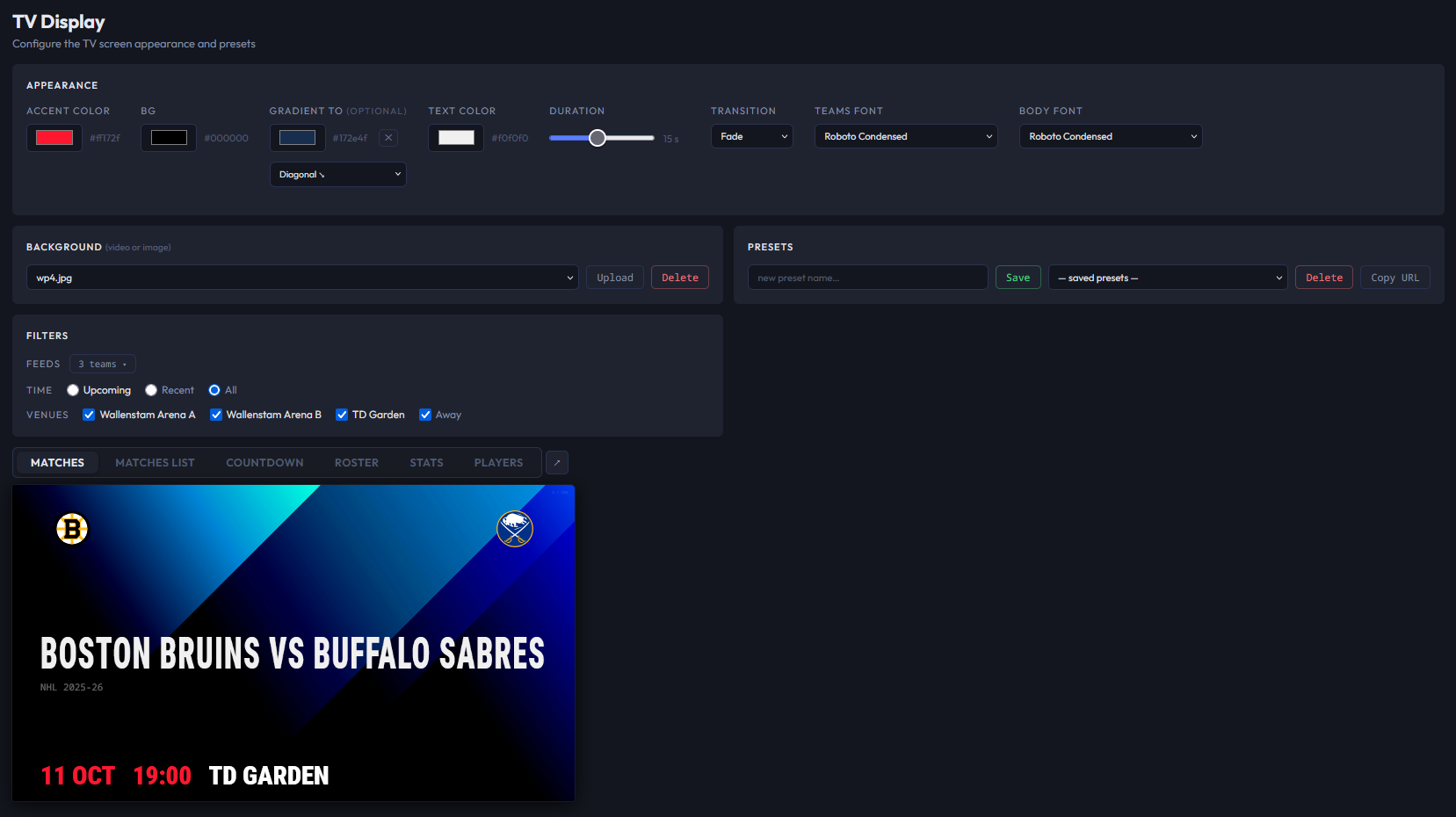
- Saving: Type a name in the preset field and click Save. To overwrite an existing preset, select it from the dropdown first, adjust settings, then click Save.
- Loading: Select a preset from the dropdown. Settings update immediately in the preview. Nothing is written to the server until you click Save.
- Using on a display page: Append
?preset=nameto the page URL, e.g./tv-matches?preset=MyPreset. The Copy URL button builds this URL for you. - In the Client tab: Each game and idle slot has a preset dropdown that automatically builds the correct URL — no manual URL editing needed.
All TV pages (Matches, Matches List, Countdown, Roster, Stats) share the same preset list. Fields a page doesn't use are silently ignored.
LED
The led page is similar to TV. But made for long displays. It generates a simple html page that could be used in another player like Sedna.
Use Feeds to pick which teams appear. Save named presets and load them with ?preset=name in the URL.
The LED page is not used in the client. This is more static content that should be triggered manually.
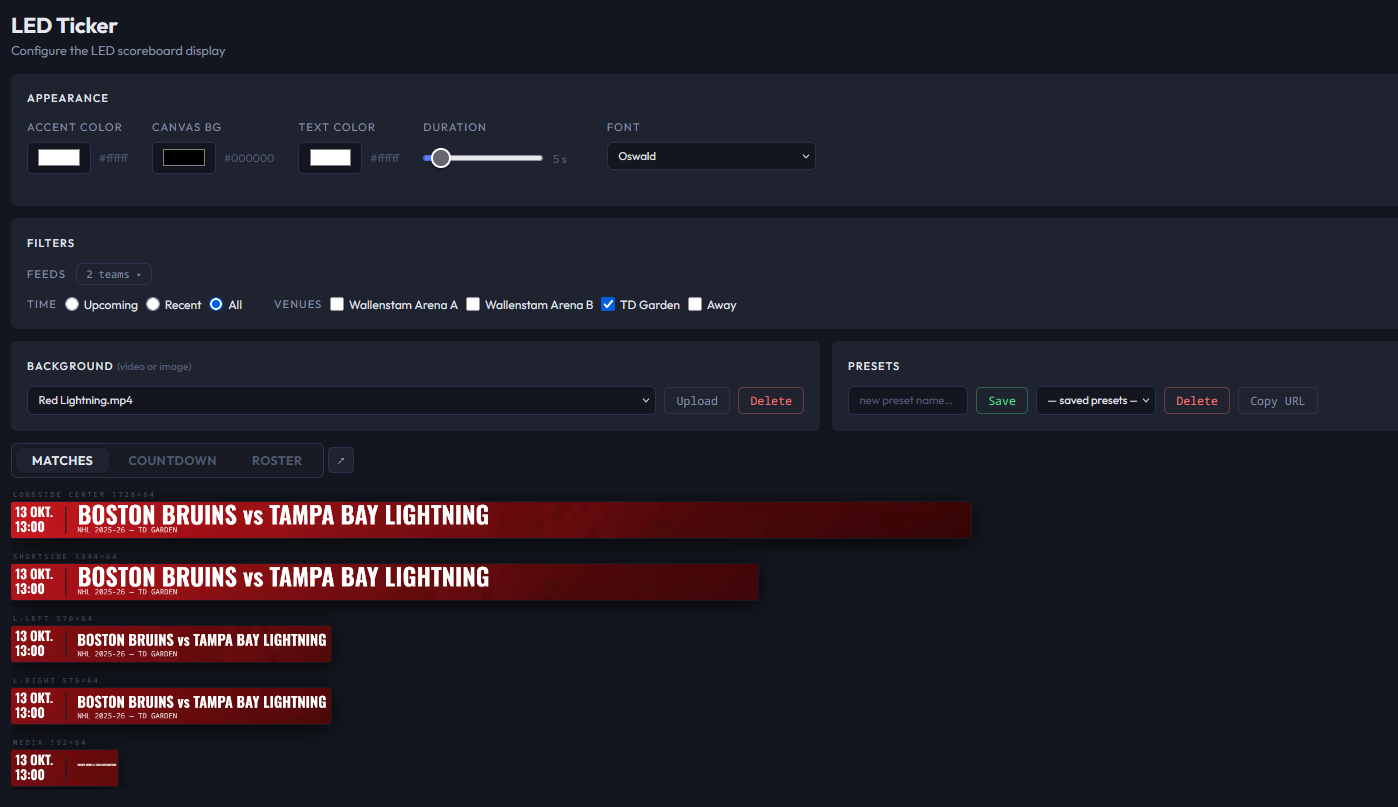
Below is an example of Led output.

TV Pages
Each TV page is configured in the TV tab. Save a preset per use case and assign it to a slot in the Client tab.
Matches — /tv-matches
Full-screen rotating cards, one match at a time. Cycles through upcoming matches at the configured duration interval. Good for a lobby screen showing what's on today.
Matches List — /tv-matches-list
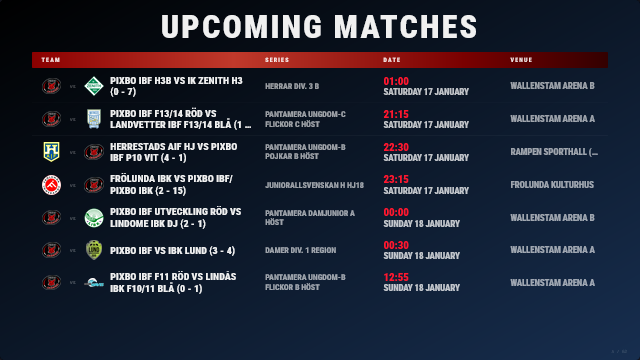
Shows multiple upcoming matches at once in a table — team logos, series, date/time and venue. If there are more matches than fit, the page flips automatically at the duration interval.
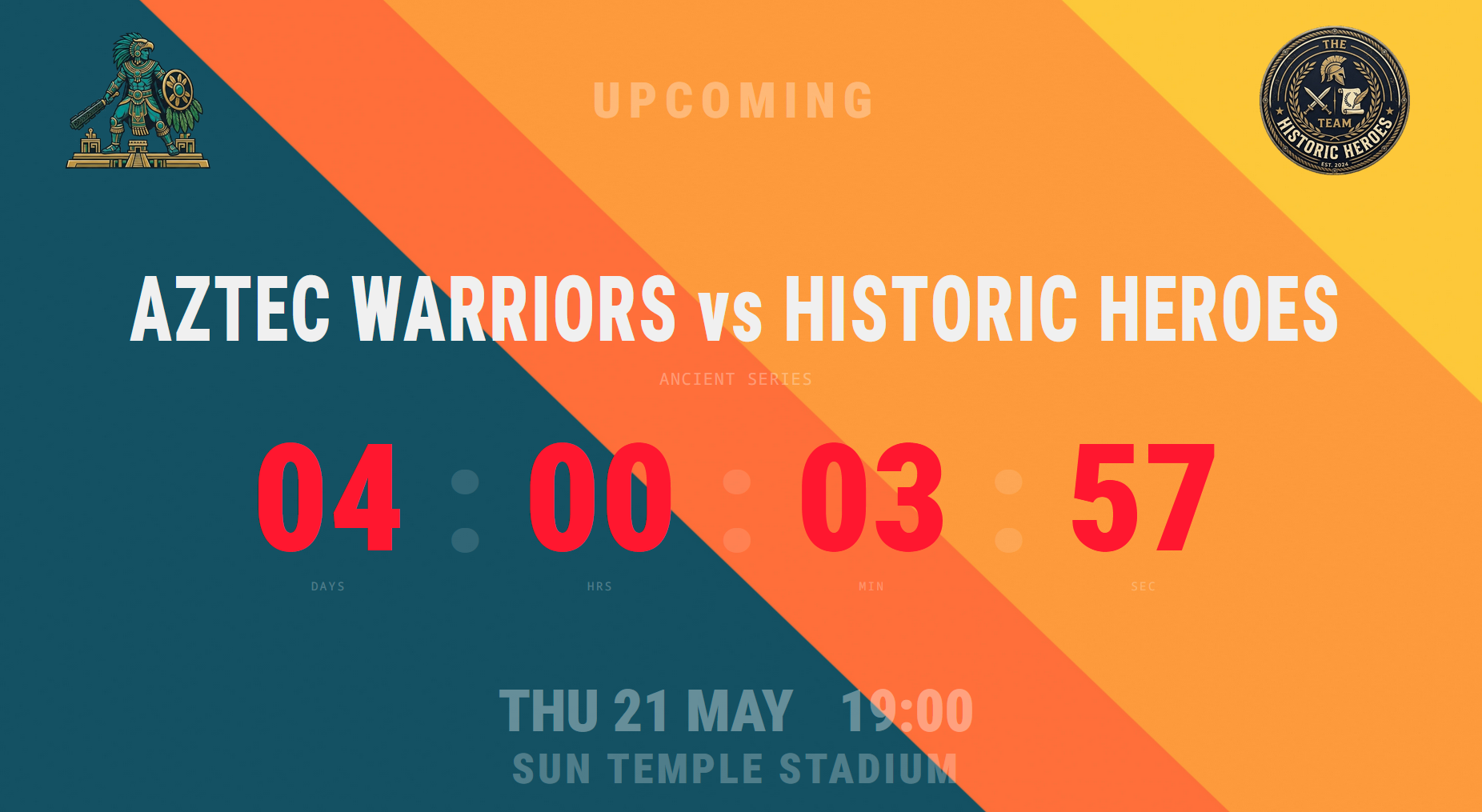
Countdown — /tv-countdown
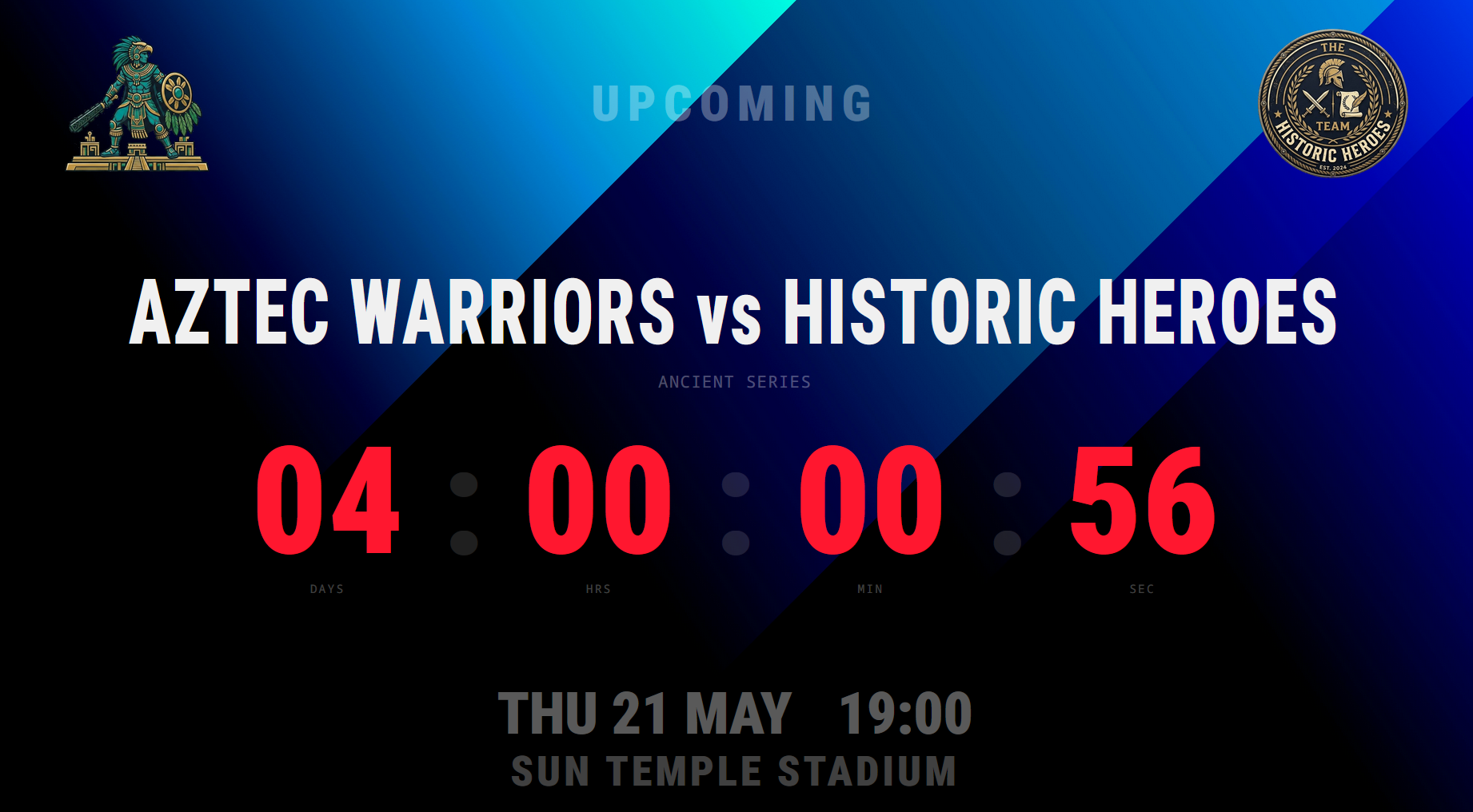
Counts down to the next match kickoff, then switches to a GAME ON screen. Smart Mode keeps the screen blank outside match windows, wakes up before kickoff, shows countdown, switches to GAME ON, then sleeps again after the match ends.
Roster — /tv-roster
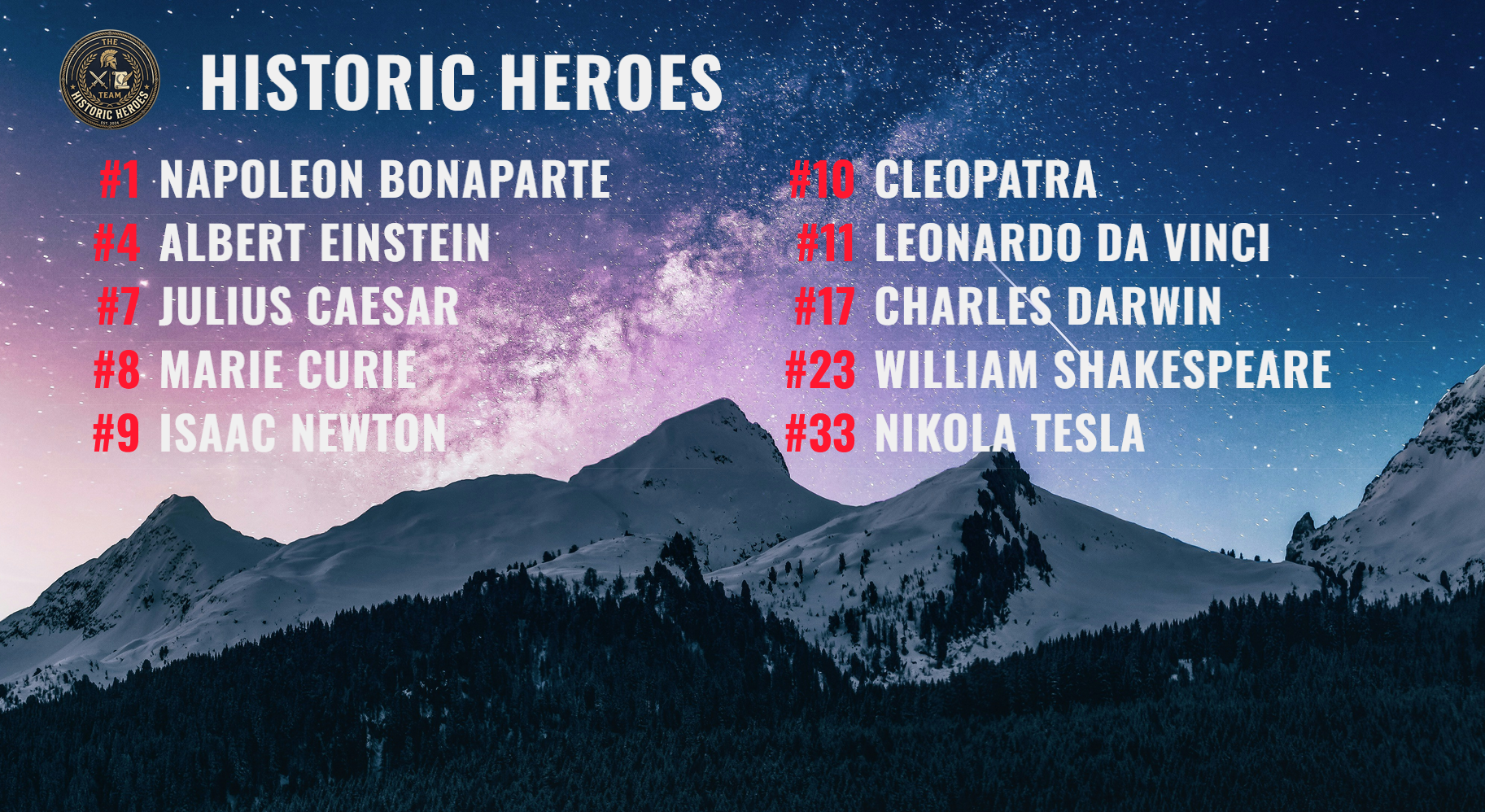
Full-screen player list with numbers and names. Without a ?team= parameter it automatically picks the team whose next scheduled game is soonest.
Stats — /tv-stats
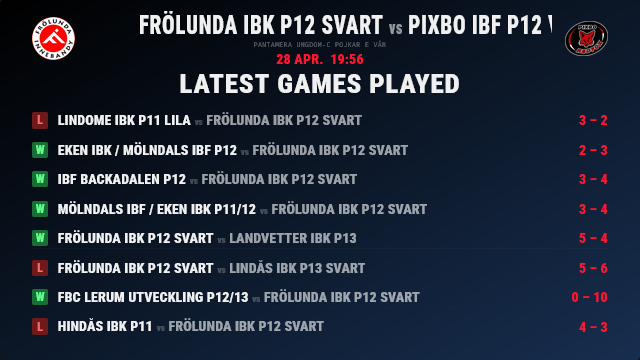
Pre-match stats for both teams in the next upcoming game — wins, draws, losses, goals for/against and last-5 form. Requires History enabled on the relevant feeds.
Players — /tv-players
Promote some players. Full-screen player profile cards using data from Player feeds. Cycles through players at the configured duration interval. Requires player feeds to be added in the Feeds tab.
Content
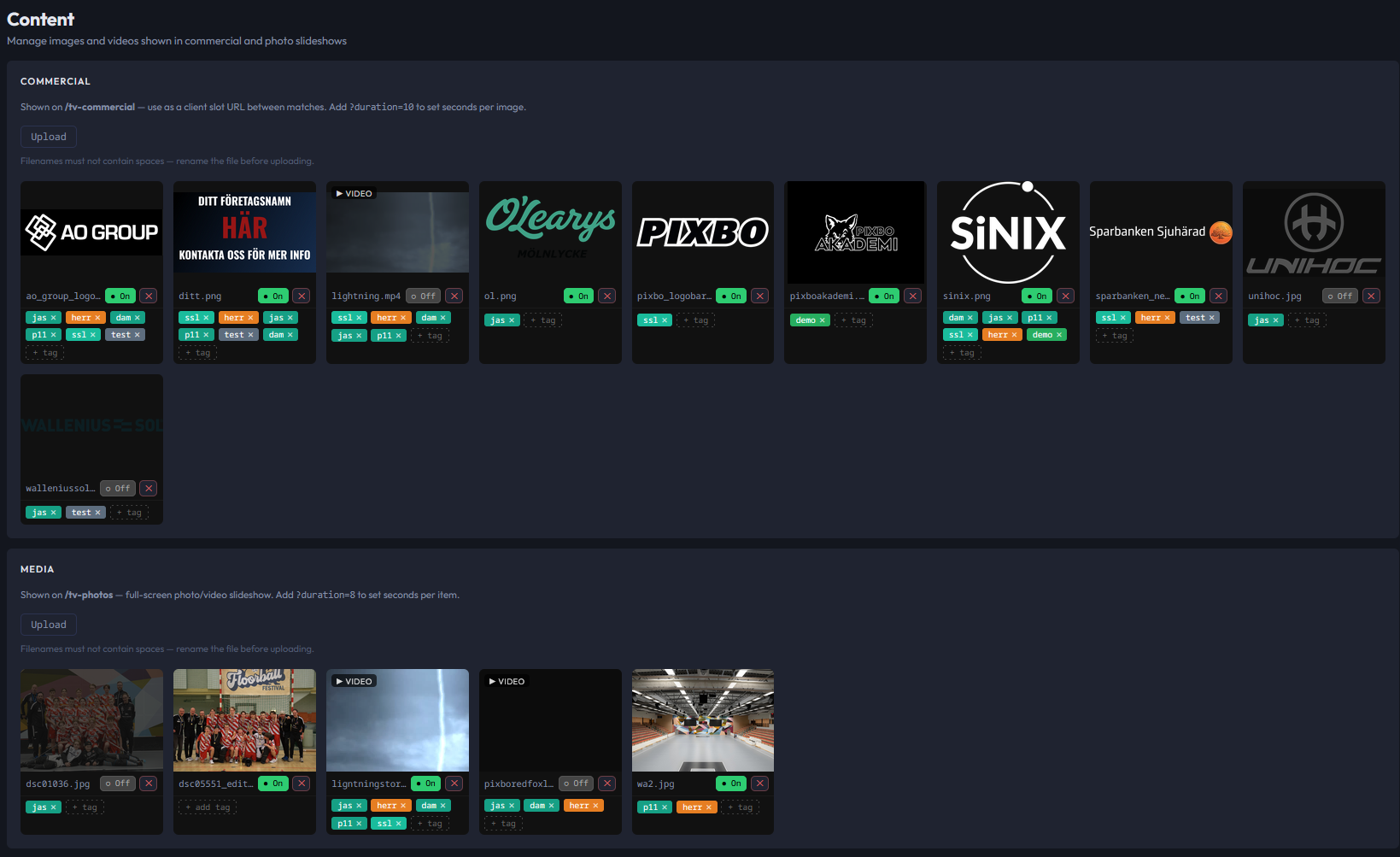
The Content tab manages images and videos shown in the /tv-commercial and
/tv-photos slideshows. Supported formats: jpg, png, gif, webp, mp4, webm.
In most cases this is what you want to show during idle mode. When no matches are coming up.
This is similar to a normal digital signage or a powerpoint presentation. Media is general photos. Commercial is what it sounds like.
Filenames must not contain spaces. Rename files before uploading — use underscores or hyphens
instead (e.g. Intro_2024.mp4). Uploads with spaces in the filename will be rejected.
Each file has an On/Off toggle. Inactive files are kept on disk but excluded from the slideshow.
Videos play through to completion before advancing; the ?duration= parameter only applies to images.
Client
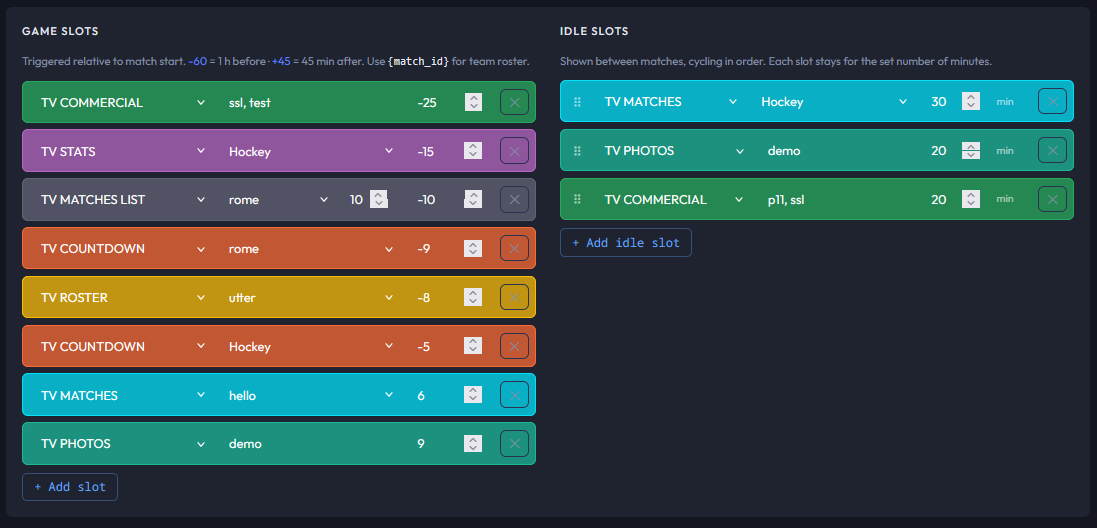
The client is what creates the screens you will use to display your content on a TV. It connects to the server via WebSocket and switches content automatically based on the configured slot schedule. No software to install — just a browser URL. The content is managed by using slots. So first create your TV presets, save them and assign them to slots. You can include the teams you want. Let´s say you want some image 1 hour before a game starts, set it to -60 minutes. The client reads the start of next game from the feeds. Next you might want the countdown, use a countdownpreset and and set it to -10 minutes. It will always use the next upcoming game. Add upcoming games to 15 min. This will display this preset 15 minutes after game has started. After this the client will go to idle mode. So the lenght of the game mode depends how youconfigure the slots.
The player is always in one of two modes:
- Idle mode — no match is active. The player cycles through idle pages on a loop: typically a commercial slideshow, then a photo slideshow.
- Game mode — a match is approaching or in progress. The player switches to a sequence of match-related pages timed relative to kickoff: countdown, roster, matches, stats. When game mode ends the player returns to idle.
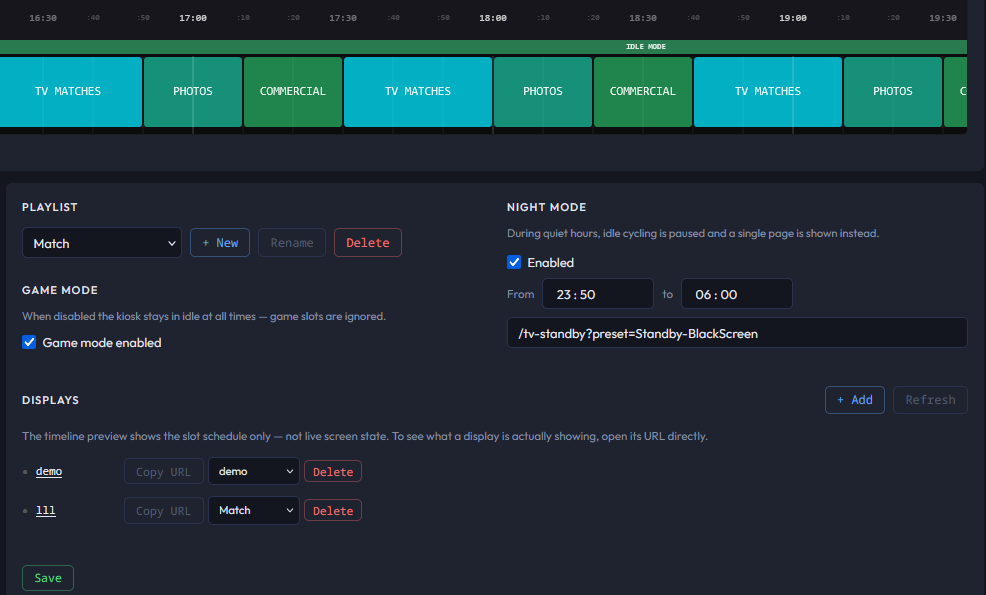
Client tab overview
- Playlists — a named configuration set (game slots, idle slots, game mode, night mode). Use + New to create a playlist. The Default playlist always exists and cannot be deleted.
- Game slots — pages shown in sequence around each match, sorted by offset relative to kickoff (KO). E.g. −30 = countdown starts 30 min before KO, +45 = stats page 45 min after.
- Idle slots — pages shown when no match is active, cycling in order. Each has a duration in minutes. Drag to reorder.
- Game mode — when disabled the player stays in idle at all times. Useful for screens that should never show match content.
- Night mode — during a configured quiet-hours window, idle cycling stops and a single standby page is shown instead. Enable it, set the From/To times and the page URL.
- Displays — the list of registered browser players. Each display has a stable ID and is assigned to a playlist. Use Copy URL to get the URL to load on that screen.
Settings
Club Identity
Your club's name, sport (Floorball / Ice Hockey), data source, display language (English / Svenska), logo, team name overrides, public URL, and home arenas. Home arenas map to venue filter slots A/B/C and are used for home/away detection on display pages.
Endpoints
Collapsible reference table of all display page URLs and data API endpoints. Useful for building kiosk URLs or integrating with external tools.
Scrape
- Teams feed list — refresh the full team list from the source (run once per season when new teams appear)
- Manual scrape — one-off pull of a specific team URL for roster or schedule
- Scheduled scraping — enable/disable automatic nightly scraping; set frequency to daily or monthly
Dev Tools
- Time offset — shift the app's internal clock forward/back by days/hours/minutes for testing
- Randomize KO — set the offset to 30 min before a random upcoming match, for quick countdown testing
- Fake match — inject a test match into a schedule file a few minutes from now
- Sample feed — load a built-in test feed with fake players and matches (team ID 99999)
- Group feeds by sport — toggle sport headers in the Feeds tab scheduled list
Custom Fonts
Upload .ttf, .otf, .woff, .woff2 font files. After uploading, reload the page for them to appear in the TV/LED font dropdowns.
Logos
- Fetch logos — auto-download NHL team logos from the internet; floorball logos must be uploaded manually
- Team logos — upload individual logo files or a ZIP; use Missing logos to find teams without a matching file
License
Shows trial/license status and days remaining. Enter and activate a license key from sporteventtv.com.
Backup & Restore
Download a full ZIP backup of all data and media. Restore by uploading a backup ZIP.
Danger Zone
Reset all data — deletes all schedules, rosters, player feeds and settings. Media files are kept.
FAQ
Why SportEventTV?
Most digital signage tools are general-purpose and require a lot of setup to show sports content. SportEventTV is built specifically for sports venues — schedules, rosters and countdowns work out of the box.
Pricing and license?
SportEventTV requires a license key after the trial period. Contact us at info@sporteventtv.com for pricing. Licenses are per installation and cover all screens on that server. You can download and use it for free full functions for 3 months. Swedish Floorball is free to use. You will still need a key though.
What sports are supported?
To be honest not many. We just lauched this. Currently swedish Floorball and NHL Ice Hockey. More data sources are planned. Custom feeds can be added manually regardless of sport.
Development
SportEventTV is actively developed. Feature requests and feedback are welcome — reach out at info@sporteventtv.com.
I have found a bug?
Please report it to info@sporteventtv.com with a short description of what happened and what you expected. Screenshots or screen recordings are very helpful.